
Opening and saving
The web editor lives at hologrambb.eclipstudio.net. It edits a copy of the hologram in your browser; nothing changes on the server until you apply it with a command. There is no live connection between the two.
Opening a hologram
| How | What happens |
|---|---|
/hbb web <id> in game | The chat gives you a link and a code. Click the link to open the editor with the hologram loaded; click the code to copy it. |
| Paste a code | On the editor's first page, paste the code and press Load. |
| New hologram | Starts an empty hologram in the browser. Applying it creates it where you stand. |
| Open a file | Opens a hologram .yml from your computer, for example one from your server's holograms folder. |
Codes are kept for a limited time. If one has expired, run /hbb web <id> again.
The screen
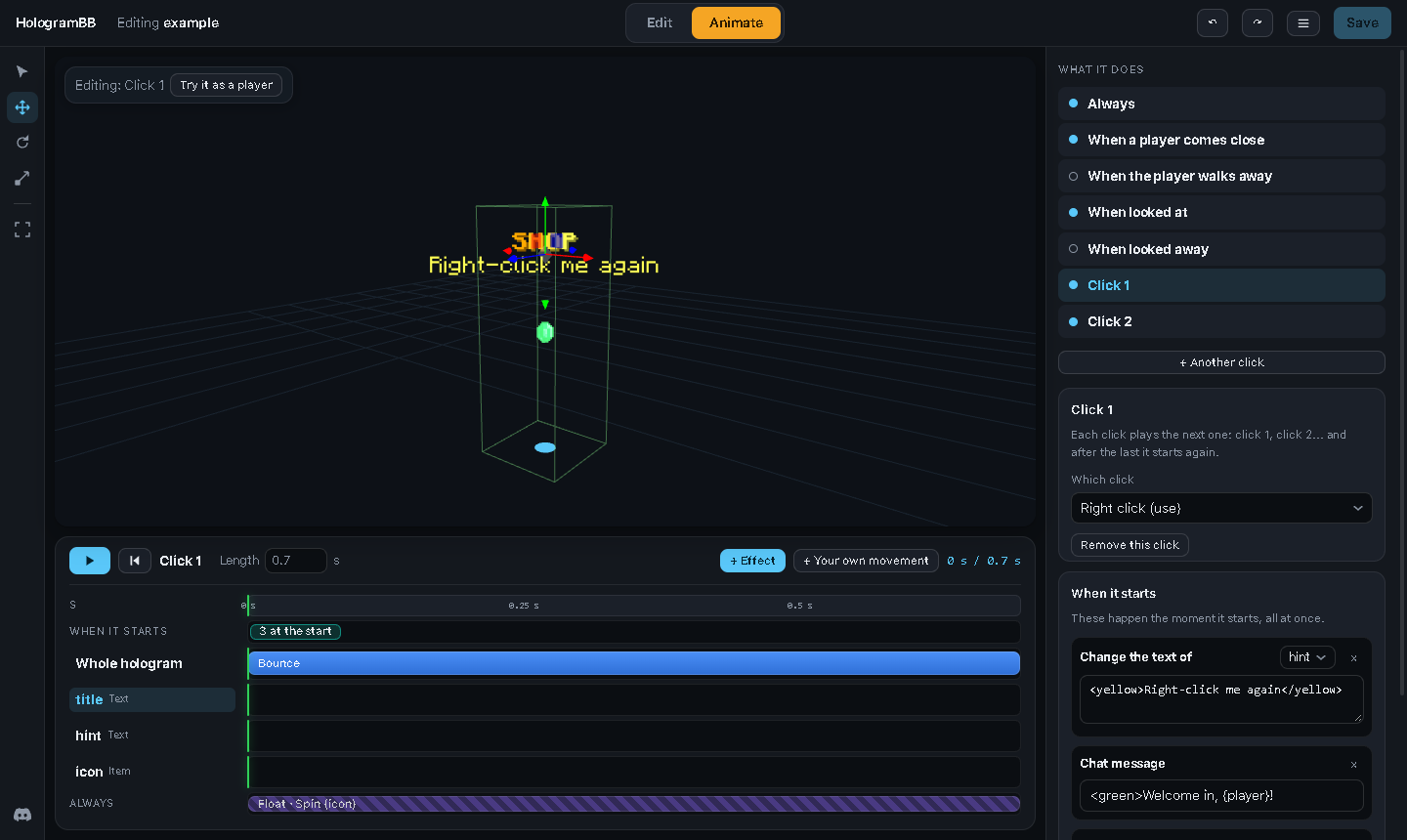
| Place | What it is |
|---|---|
| Top centre | The two modes: Edit (what the hologram is) and Animate (what it does). Keys 1 and 2 switch too. |
| Top right | Undo, redo, the menu, and Save. |
| Left | The tools for the 3D view: select, move, rotate, scale, and look at the hologram again. At the bottom, our Discord. |
| Centre | The 3D preview, drawn with Minecraft's own font. |
| Right | The layers and their settings (Edit), or the moments (Animate). |
| Bottom | The one play button, and the timeline. |
Saving
Press Save (or Ctrl+S). The editor gives you a command:
/hbb apply <code>Run it in game:
- An existing hologram is replaced by your version. It stays where it is in the world.
- A new one (made with New hologram, or after you renamed it) is created where you stand.
- If your changes add commands that players would set off (a
[console]or[player]command, a message…), the server lists them first and waits for/hbb apply <code> confirm. Whoever saved in the browser is not necessarily who runs the command, so this is on purpose. - If something is wrong, the server says what and does not change anything.
The address bar changes to the code you saved, so reloading the page or sharing the link opens that version.
The menu
| Option | What it does |
|---|---|
| Download .yml | Saves the hologram's own file on your computer. Put it in plugins/HologramBB/holograms/ and run /hbb reload: no code needed. |
| Hologram settings | Its name (id), how far away it is seen, the click box, and who sees it. See Configuration. |
| Language | English or Spanish. |
| Snap to grid | Moves in steps of 0.05 blocks and 15 degrees. |
| Help | How it works, and every keyboard shortcut. |
Keyboard shortcuts
| Key | Does |
|---|---|
1 / 2 | Edit / Animate |
Space | Play / pause |
Home | Back to the start |
Q W E R | Select, move, rotate, scale |
F | Look at the hologram again |
K | A keyframe of the selected layer, here |
← → | One tick back or forward in the timeline |
D | Duplicate the layer |
Del | Delete the selected keyframe, effect or layer |
Ctrl+C / Ctrl+V | Copy and paste a layer or keyframe |
Ctrl+Z / Ctrl+Y | Undo / redo |
Ctrl+S | Save |
Your work is safe
Changes you have not saved are kept in your browser. If you close the tab by mistake, the first page offers to carry on where you left off.